Skip to content

Compress image to a target size

Fits a photo under a size limit such as 200 KB, at the best quality that fits.

or drag and drop them here · up to 50 MB per file

Your files are processed on this device and never uploaded.

Instant conversion

There is no upload or server queue, so conversion starts the moment you drop a file and finishes as fast as your device can process it.

Your files stay private

Files are processed entirely inside your browser. They are never sent to, stored on, or seen by any server.

Nothing to install

Works on Windows, macOS, Linux, Android and iOS in any modern browser. No software, no extensions, no account.

How to use Compress image to a target size (KB)

  1. 1

    Click "Choose file" or drop your photos. Several at once is fine.

  2. 2

    Under Options, pick the target size (e.g. under 200 KB), or choose "Custom" and type a value such as 150KB.

  3. 3

    Click "Convert" to get a JPG that fits, check the size, then download it.

Example: before and after
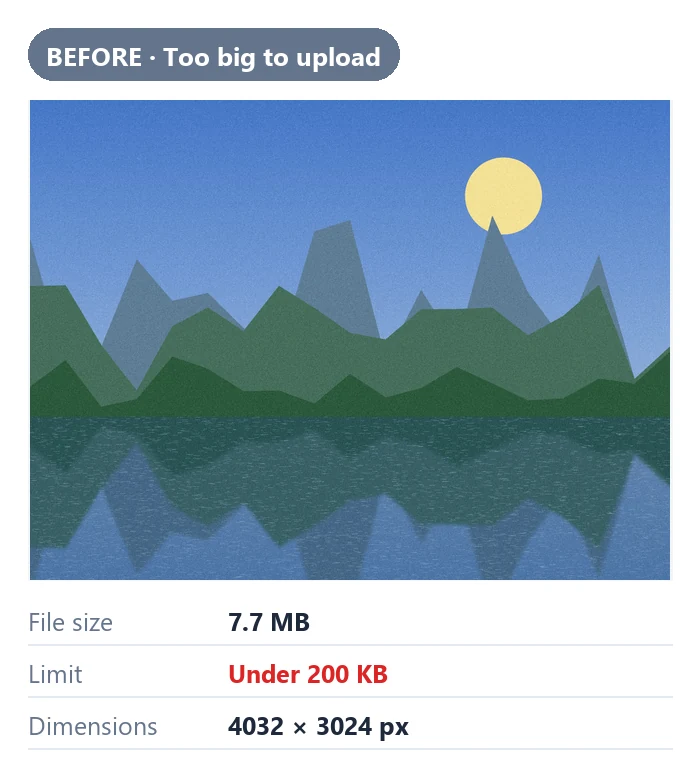
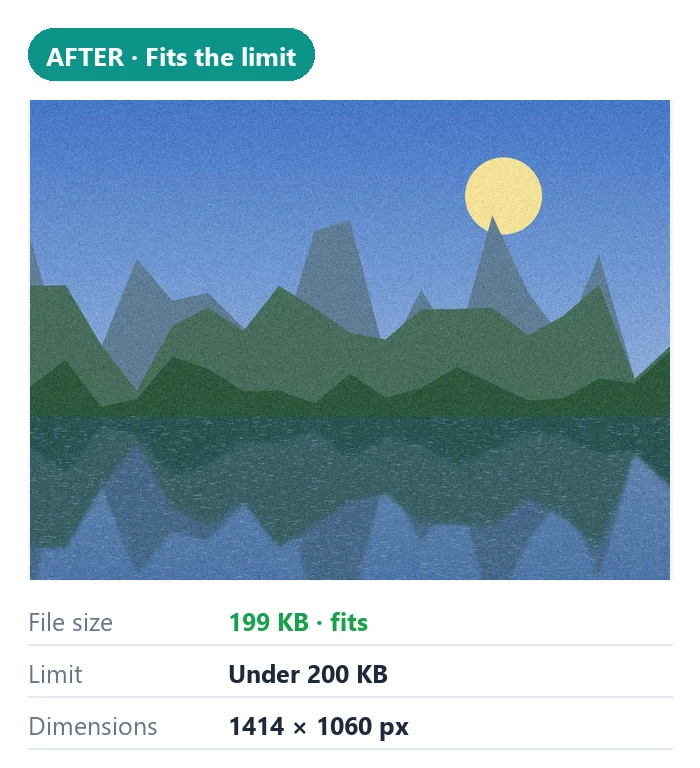
Before: a 4032×3024 phone photo, 7.7 MB After: fitted under 200 KB at 1414×1060, 199 KB
An actual result of fitting a 7.7 MB photo "under 200 KB": quality alone was not enough, so the dimensions were reduced too. Exact size and dimensions vary slightly by browser, but the result is always within the limit.

When to use it

  • An application form says “photo under 200 KB”
  • A government or school portal limits attachment size
  • A forum or message board caps image uploads

How it works

  1. At the original dimensions, quality is adjusted step by step to find the highest quality that fits the target.
  2. If even low quality does not fit, the dimensions are reduced as well and the search repeats.
  3. The file name shows the target, for example photo-200KB.jpg.

To choose quality and dimensions yourself, use Compress image; to crop to a ratio first, use Crop and rotate image. Recommended settings for common cases are in How to reduce photo file size.

Image formats this tool accepts

This tool accepts JPG, PNG, WEBP and HEIC (iPhone photos). HEIC photos that Windows struggles to open can go straight in without converting them first.

Phone photos are turned upright using the orientation recorded when they were taken. Results are saved as new images, so location (GPS) and device details are not included. Depending on the tool, the output keeps the original format or you can choose it under “Options”.

Frequently asked questions

How much quality is lost?

The highest quality that fits is chosen automatically. If lowering quality alone is enough, the dimensions stay the same; only when that is not enough are the dimensions reduced as well.

Why is the result always JPG?

JPG is the photo format virtually every upload form accepts, so the file will not be rejected for its format. HEIC and PNG photos are converted to JPG too.

Does it also set passport-photo dimensions?

This tool fits the file size. To match a ratio such as 3:4, crop first with Crop and rotate image, then fit the size here.

It says the photo is already smaller than the target.

The photo is already a JPG within the limit, so nothing needs to change.

Are my photos uploaded?

No. Photos are processed inside your browser, and metadata such as location is removed from the result as well.

Related guides

Related converters