Skip to content

Image to text (OCR)

Reads the English and Korean text in photos, screenshots and scans and turns it into copyable text (TXT).

or drag and drop them here · up to 50 MB per file

Your files are processed on this device and never uploaded.

Instant conversion

There is no upload or server queue, so conversion starts the moment you drop a file and finishes as fast as your device can process it.

Your files stay private

Files are processed entirely inside your browser. They are never sent to, stored on, or seen by any server.

Nothing to install

Works on Windows, macOS, Linux, Android and iOS in any modern browser. No software, no extensions, no account.

How to use Image to text (OCR)

  1. 1

    Click the file box or drop an image onto it. JPG, PNG, WEBP and iPhone HEIC photos are accepted.

  2. 2

    For English-only images, choose "English only" under "Options". The default is Korean + English.

  3. 3

    Click "Convert", check the result with "Preview", then save the TXT file with "Download".

Example: before and after
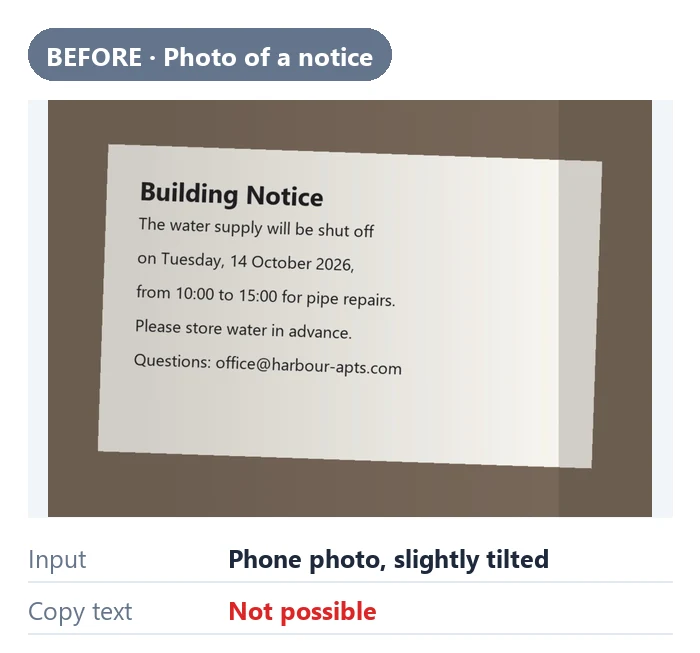
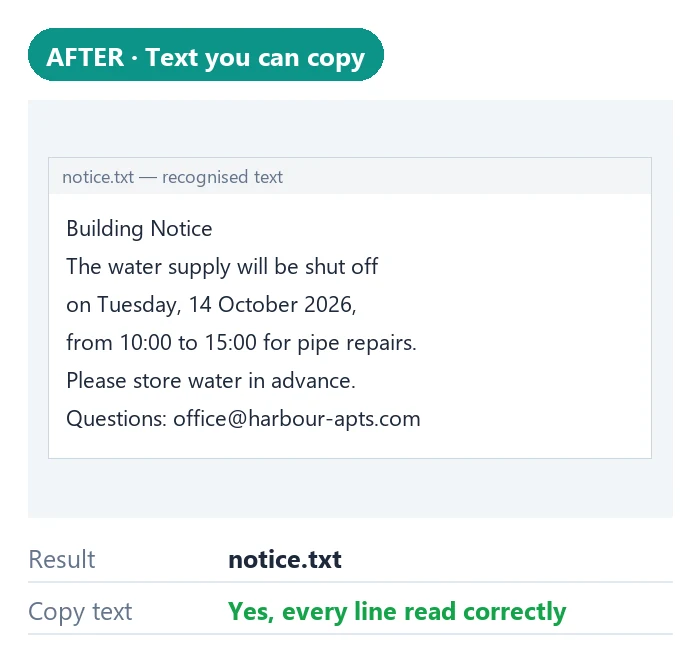
Before: a phone photo of a printed notice After: text you can copy
The real result of reading a slightly tilted photo of an English notice with "English only". Every line was read correctly.

When to use it

  • Copying text from a photo of a book, handout or notice
  • Using the text from an image or screenshot that cannot be selected
  • Keeping the contents of business cards, receipts or whiteboard photos as notes

Taking photos that read well

  • Fill the frame with the text and shoot straight on.
  • Use good light without shadows or glare.
  • Retaking a blurry photo helps more than anything else.
  • To keep only part of an image, cut it out first with Crop image.

What can it read?

Item Recognition
Printed English, Korean and numbers Reads well
Screenshots Reads well
Vertical text, handwriting Not read or many errors
Chinese characters, Japanese and other languages Not supported

To count the recognised text, paste it into the Character counter.

Image formats this tool accepts

This tool accepts JPG, PNG, WEBP and HEIC (iPhone photos). HEIC photos that Windows struggles to open can go straight in without converting them first.

Phone photos are turned upright using the orientation recorded when they were taken. Results are saved as new images, so location (GPS) and device details are not included. Depending on the tool, the output keeps the original format or you can choose it under “Options”.

What is a TXT file?

A TXT file contains plain text only: no fonts, layout, images or hidden markup. That makes it the most portable document format there is. It opens on every device and in every text editor, is easy to search and process with scripts, and takes up very little space.

The trade-off is that formatting such as bold text, tables and pictures cannot be stored. Line breaks and blank lines are the only structure a TXT file has.

Frequently asked questions

How accurate is it?

Printed text photographed straight on and screenshots are mostly read correctly. Handwriting, blurry or tilted photos, patterned backgrounds and very small text can produce wrong or missing characters, so compare important content with the original.

Why is the first conversion slower?

The first time, the recognition engine and the Korean and English data (about 5–8 MB) are downloaded from this site. After that your browser reuses them and starts right away. Recognition itself takes a few seconds per image.

Are tables and layout kept?

No. The result is plain text, line by line. Table cells come out as lines with spaces between them, and font size or colour is not kept.

Does it work with scanned PDFs?

For PDFs use "Scanned PDF to text", which reads many pages at once and labels each page.

Are my images uploaded?

No. Reading the image and recognising the text both happen in your browser on your device, so sensitive images such as IDs or contracts never leave it.

Related guides

Related converters