Example: before and after
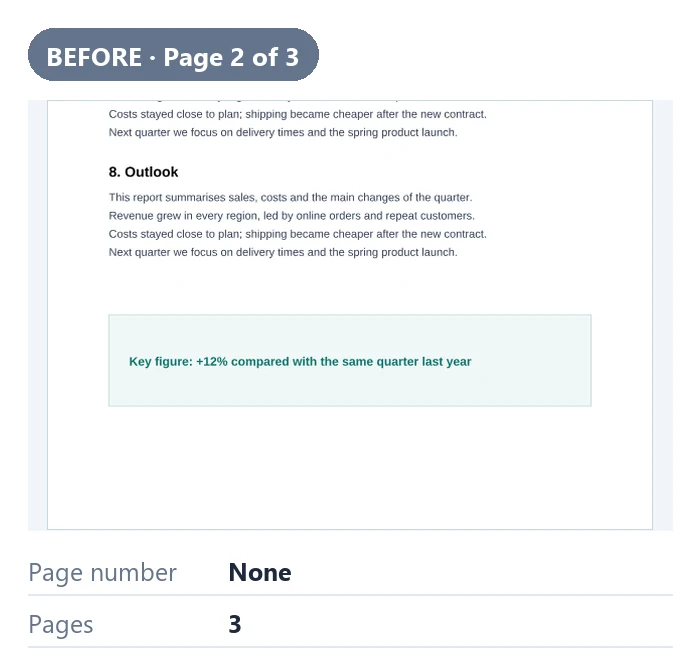
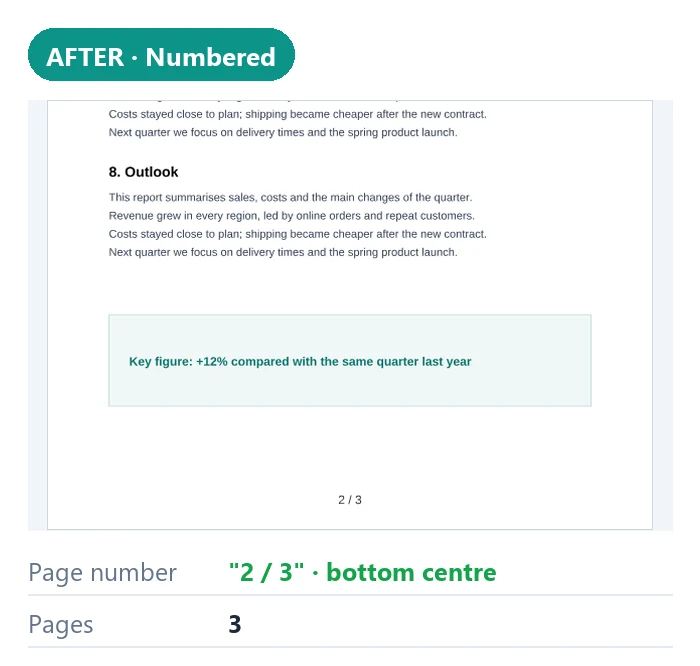
When to use it
- After merging PDFs, to number the combined document continuously
- When a submission needs “1 / 10”-style page marks
- To keep printed pages in order
How it works
The visible area (crop box) and rotation of each page are taken into account, and a grey number sized to the page is added. The existing content is untouched, and the numbers are real text that can be searched and copied.
The text size follows the page width, between 8 and 12 pt (about 12 pt on portrait A4), and the number sits about 4% of the shorter side (at least 18 pt) in from the edge. The original document is edited in place, so bookmarks, links and form fields are kept and the file barely grows. The saved file gets “-numbered” added to its name.
Option combinations (10-page document)
| Style | Start | First page | Second page | Last page |
|---|---|---|---|---|
| 1 | From the first page | 1 | 2 | 10 |
| 1 / 10 | From the first page | 1 / 10 | 2 / 10 | 10 / 10 |
| - 1 - | From the first page | - 1 - | - 2 - | - 10 - |
| 1 / 10 | Skip the cover | (no number) | 1 / 9 | 9 / 9 |
With “Skip the cover”, the total also leaves the cover out. Numbers run continuously over every page; there’s no option to pick individual pages or a different starting number. To leave out both a cover and a contents section, remove the front pages with Delete PDF pages, number what remains, then put the front pages (saved separately with Extract PDF pages) back in front with Merge PDF.
Choosing a position
- Bottom centre — the safe choice for reports, coursework and submissions.
- Bottom right — for documents that already have something (a footer or logo) at the bottom centre.
- Top right — for documents with a narrow bottom margin or a full footer.
Numbers are drawn on top of the existing content, so if text or an image already sits in that spot they may overlap. After downloading, zoom in on a few pages, and if they collide, convert again with another position. Choosing “Skip the cover” on a one-page PDF leaves nothing to number, so you’ll see a message instead. Password-protected PDFs can’t be processed.
To also mark the document “CONFIDENTIAL”, follow up with Add watermark to PDF.
What is a PDF file?
PDF (Portable Document Format) was created by Adobe and is now an open ISO standard (ISO 32000). A PDF fixes the exact layout of every page — fonts, images and positions — so a document looks the same on every screen and printer. That makes it the standard for contracts, invoices, manuals, papers and forms.
Inside, a PDF stores each page as drawing instructions. Text written by a program is stored as real characters (a “text layer”) and can be selected and extracted. Scanned documents usually store only a picture of each page, so their text cannot be extracted without OCR.