Skip to content

Fix CSV encoding

Changes only how the characters are stored, so Excel shows accented and non-Latin text correctly when you double-click the file.

or drag and drop them here · up to 50 MB per file

Your files are processed on this device and never uploaded.

Instant conversion

There is no upload or server queue, so conversion starts the moment you drop a file and finishes as fast as your device can process it.

Your files stay private

Files are processed entirely inside your browser. They are never sent to, stored on, or seen by any server.

Nothing to install

Works on Windows, macOS, Linux, Android and iOS in any modern browser. No software, no extensions, no account.

How to use Fix CSV encoding

  1. 1

    Click "Choose CSV file" or drop the CSV that shows garbled characters.

  2. 2

    Under Options, pick where you will open the file. For Excel, keep the default.

  3. 3

    Click "Convert", check the text with "Preview", then download it under the same name.

Example: before and after
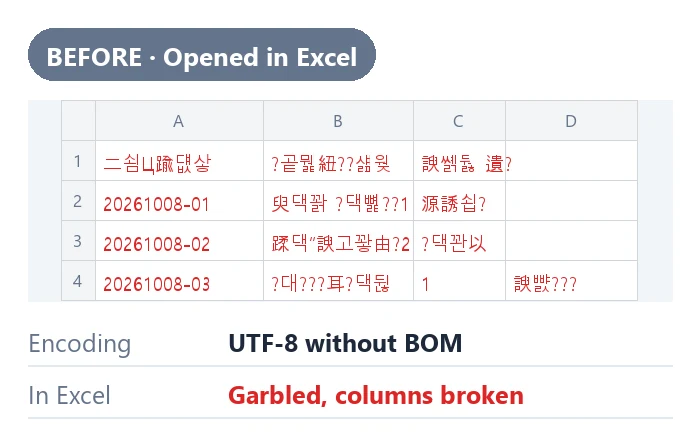
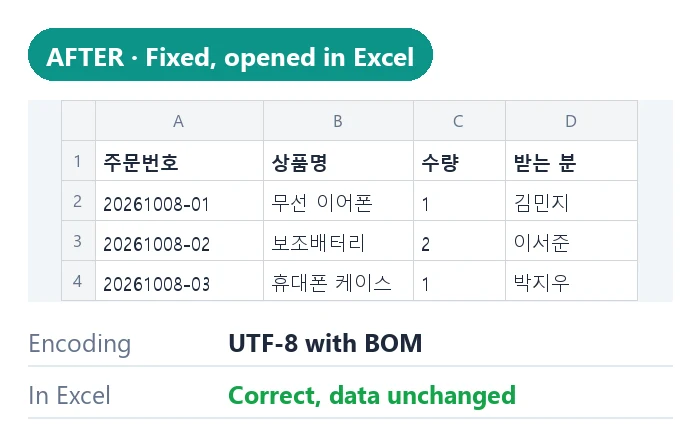
Before: a CSV opened in Excel with garbled Korean and broken columns After: the same CSV in Excel with every column correct
The cell text is exactly what Excel showed when the same order list was double-clicked. Only a BOM was added; the data is unchanged.

When to use it

  • An order export or bank statement CSV shows text like é or 주문 when opened in Excel
  • A CSV from Google Sheets or Notion looks fine everywhere except Excel
  • A CSV saved by Excel shows � characters in Google Sheets or another program
  • An upload form only accepts “ANSI” or EUC-KR CSV files

Which option should I pick?

Opening it in Option Saved as
Excel (double-click) Excel (default) UTF-8 + BOM
Google Sheets, Numbers, software, databases Google Sheets or other programs UTF-8
Older Korean upload forms Older Korean systems EUC-KR (CP949)

You don’t need to know the original encoding: UTF-8, EUC-KR and other common encodings are detected automatically.

Why not just re-save it in Excel?

Re-saving as “CSV UTF-8” in Excel fixes the characters, but it can also drop leading zeros from codes like 00123, turn long numbers into 1.23E+15 and change date formats. This tool never goes through Excel and changes only the encoding, so your data stays intact.

For the background, see Garbled characters when opening a CSV in Excel.

What is a CSV file?

CSV (comma-separated values) stores a single table as plain text: one row per line, with cells separated by commas (or semicolons or tabs in some regions). Cells that contain commas, quotes or line breaks are wrapped in double quotes.

CSV is the universal exchange format for data — almost every database, spreadsheet, CRM, bank and analytics tool can import and export it. It has no formatting, formulas or multiple sheets, and it does not record its own text encoding, which is why non-English CSV files sometimes open with garbled characters.

Frequently asked questions

Why is the text garbled only in Excel?

When you double-click a CSV, Excel assumes your system's legacy encoding unless the file starts with a marker called a BOM. Most CSV exports from web shops, banks, Google Sheets and software are UTF-8 without a BOM, so accented letters and non-Latin scripts come out as nonsense.

Does the data change?

No. Commas, quotes, line breaks and number formats (including leading zeros) stay exactly as they were. Unlike opening and re-saving in Excel, dates and long numbers are not reformatted.

When should I choose EUC-KR?

Only for older Korean systems — bulk upload forms, banking or government sites — that accept nothing but "ANSI" or EUC-KR CSV. If the file contains characters EUC-KR cannot store, such as emoji, you will be told.

It says the file is already saved that way.

The file already uses that encoding. If Excel still shows it wrongly, the delimiter (comma vs. semicolon) may be the issue — try the CSV to XLSX converter instead.

Is it safe for customer lists or orders?

The file is processed inside your browser and never sent to a server.

Related guides

Related converters