Skip to content

Compress PDF

Recompress the photos inside a PDF to get under upload and attachment limits.

or drag and drop them here · up to 200 MB per file

Your files are processed on this device and never uploaded.

Instant conversion

There is no upload or server queue, so conversion starts the moment you drop a file and finishes as fast as your device can process it.

Your files stay private

Files are processed entirely inside your browser. They are never sent to, stored on, or seen by any server.

Nothing to install

Works on Windows, macOS, Linux, Android and iOS in any modern browser. No software, no extensions, no account.

How to use Compress PDF

  1. 1

    Click "Choose PDF file" or drop a PDF onto the tool.

  2. 2

    Optionally choose the compression level under "Options" — Balanced is a good start.

  3. 3

    Click "Convert" and the new size is shown. If it isn't small enough, try Strong.

Example: before and after
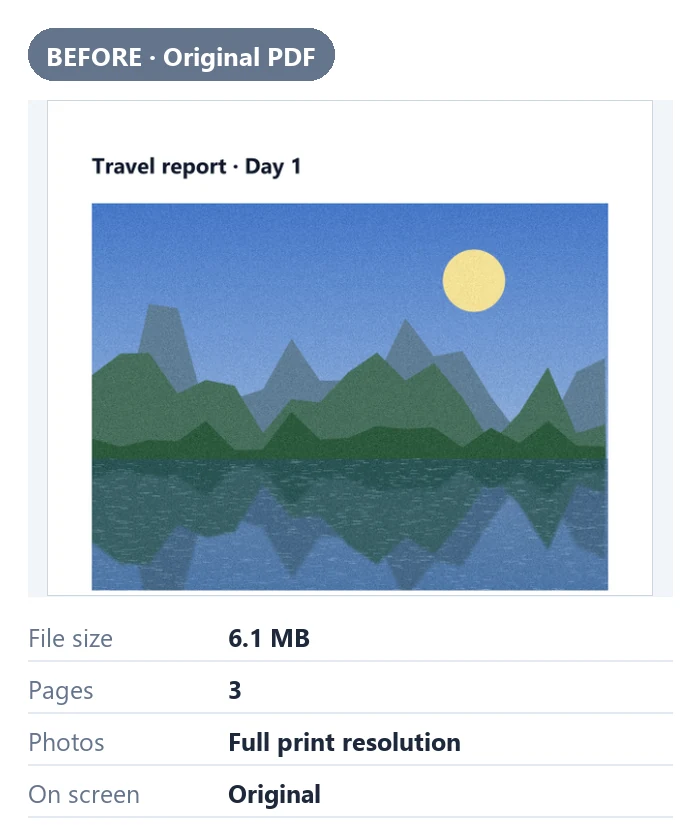
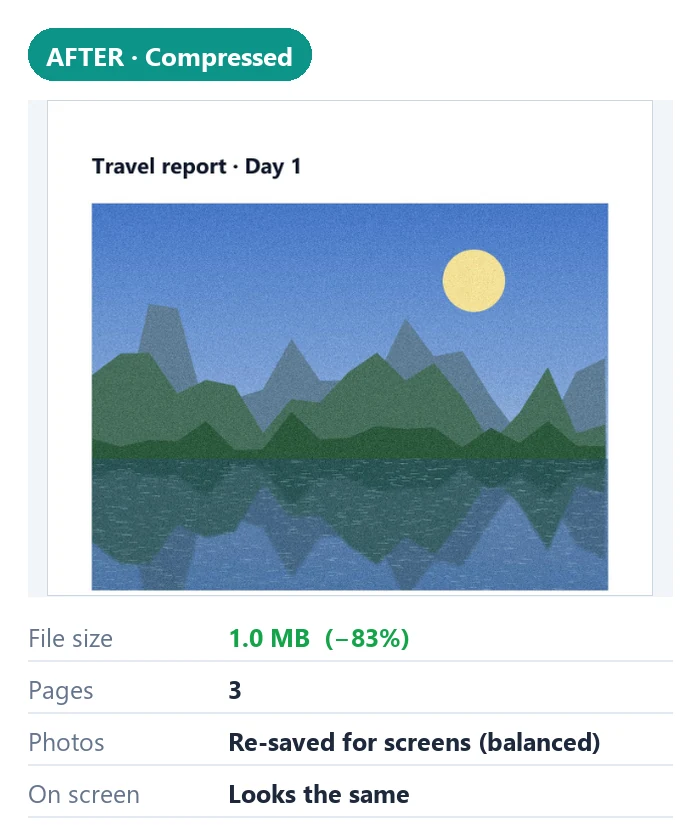
Before: a 3-page PDF with photos, 6.1 MB After: the same-looking PDF at 1.0 MB, 83% smaller
An actual result for a photo-heavy 3-page PDF with the "balanced" setting: it looks the same on screen at a sixth of the size.

Choosing a level

Option Max photo size Quality Use when
Balanced (recommended) 2000 px long side 75% Most submissions and attachments
Strong 1400 px long side 60% Very tight size limits
Light 2800 px long side 85% Image quality matters

For a photo covering a whole A4 page, Balanced is roughly 170 dpi and Strong roughly 120 dpi — plenty for reading on screen.

How it works

Each image in the PDF is found, downscaled if large and recompressed as JPEG. Transparency information is kept, and an image is left alone if recompressing it wouldn’t make it smaller. Finally the PDF structure is saved in compressed form.

More ways to shrink PDFs by cause are in the guide how to reduce PDF file size.

What is a PDF file?

PDF (Portable Document Format) was created by Adobe and is now an open ISO standard (ISO 32000). A PDF fixes the exact layout of every page — fonts, images and positions — so a document looks the same on every screen and printer. That makes it the standard for contracts, invoices, manuals, papers and forms.

Inside, a PDF stores each page as drawing instructions. Text written by a program is stored as real characters (a “text layer”) and can be selected and extracted. Scanned documents usually store only a picture of each page, so their text cannot be extracted without OCR.

Frequently asked questions

Which PDFs shrink the most?

Scanned documents, PDFs made from phone photos and photo-heavy reports, where images make up most of the file. Text-based PDFs are already compact and barely shrink.

Will the text get blurry?

Text in PDFs made by word processors is stored as text, not pictures, so it isn't affected at all. In scanned PDFs the text is part of the image and can soften at Strong — zoom in to check.

What stays unchanged?

Text, tables, shapes, links, bookmarks and page order. Only photos are resampled and recompressed, and each is replaced only if the new version is smaller.

It says the file can't be reduced.

The PDF is already optimised. Remove unneeded pages with Delete PDF pages or split it with Split PDF instead.

Related guides

Related converters