Example: before and after
When to use it
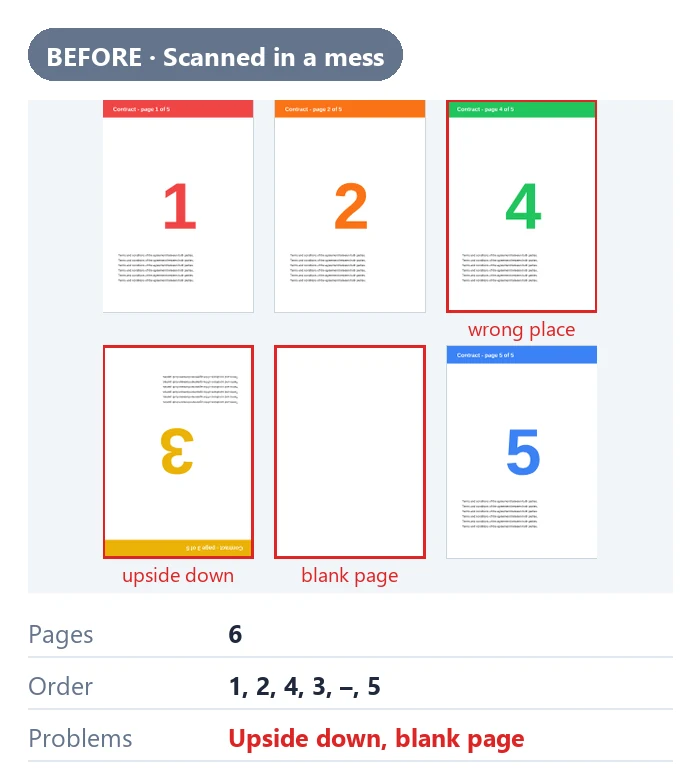
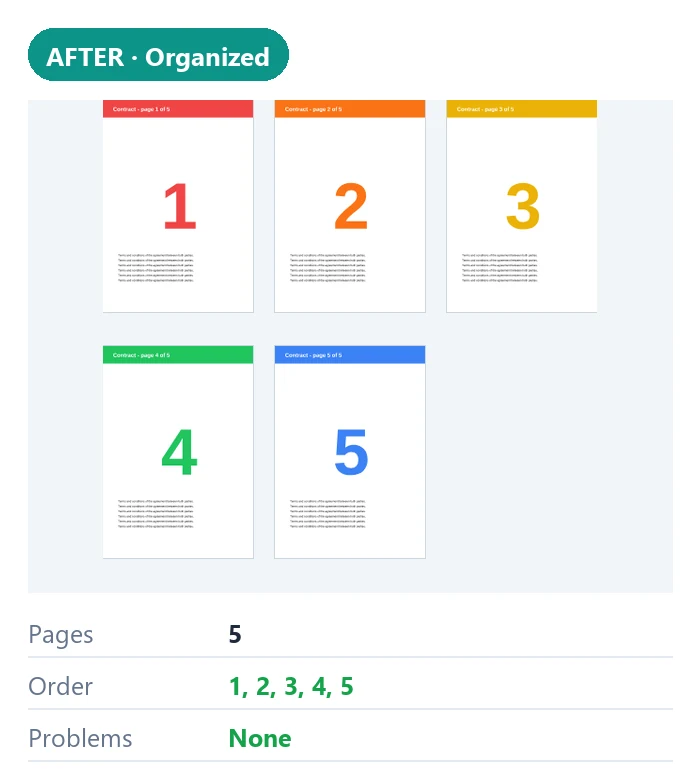
- Fixing pages that came out of the scanner in the wrong order
- Moving a cover or table of contents to the front
- Tidying up the order after combining files with Merge PDF
- Rotating upside-down scans and dropping blank pages
What you can do on one screen
| To… | Do this |
|---|---|
| Change the order | Drag a page (on phones: press and hold, then drag) or use the arrow buttons |
| Delete a page | Bin button (press again to restore) |
| Rotate a page | Rotate button, 90° clockwise per press |
| Reverse everything | “Reverse order” — handy for documents scanned back to front |
| Start over | “Reset” |
The number in the top-left corner of each thumbnail is the position it will be saved in; the “Page N” label below shows where it was originally.
Prefer page numbers?
If you already know which pages you need, the tools that take page numbers may be quicker: Extract PDF pages, Delete PDF pages and Rotate PDF accept ranges such as “1-3, 5”. See Splitting, extracting, deleting and rotating PDF pages for when to use which.
What is a PDF file?
PDF (Portable Document Format) was created by Adobe and is now an open ISO standard (ISO 32000). A PDF fixes the exact layout of every page — fonts, images and positions — so a document looks the same on every screen and printer. That makes it the standard for contracts, invoices, manuals, papers and forms.
Inside, a PDF stores each page as drawing instructions. Text written by a program is stored as real characters (a “text layer”) and can be selected and extracted. Scanned documents usually store only a picture of each page, so their text cannot be extracted without OCR.