Skip to content

Text encoding converter

Re-save TXT, CSV, SMI, HTML and other text files as UTF-8 or EUC-KR without changing a single character.

or drag and drop them here · up to 50 MB per file

Your files are processed on this device and never uploaded.

Instant conversion

There is no upload or server queue, so conversion starts the moment you drop a file and finishes as fast as your device can process it.

Your files stay private

Files are processed entirely inside your browser. They are never sent to, stored on, or seen by any server.

Nothing to install

Works on Windows, macOS, Linux, Android and iOS in any modern browser. No software, no extensions, no account.

How to use Text encoding converter

  1. 1

    Click "Choose file" or drop one or more text files.

  2. 2

    Under Options, pick the encoding to save as. If unsure, the default (UTF-8) is the safe choice.

  3. 3

    Click "Convert", check the text with "Preview", then download it under the same name.

Example: before and after
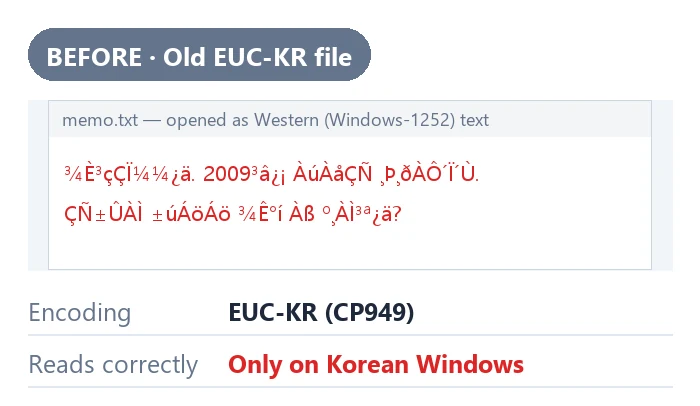
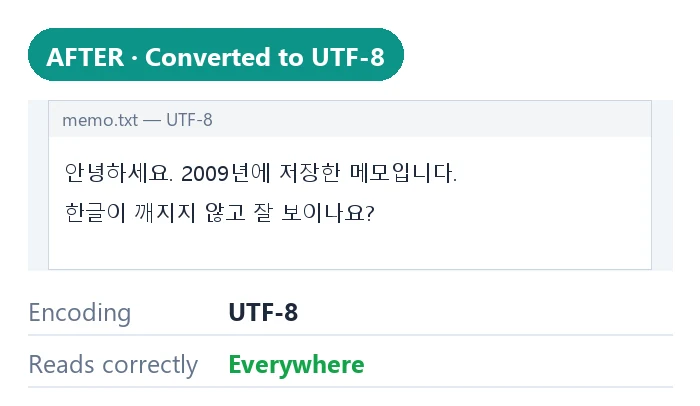
Before: an EUC-KR note opened as Western text shows symbols After: the note converted to UTF-8 reads correctly
An actual result for a note saved in EUC-KR on older Korean Windows: only the encoding changes, not the text.

When to use it

  • An old Korean TXT file or note shows ¾È³çÇϼ¼¿ä on a phone or Mac → convert to UTF-8
  • A UTF-8 file shows 안녕 in older Windows software → convert to EUC-KR
  • Text looks garbled in Excel or old Notepad → convert to UTF-8 with BOM
  • Lines from a Mac or Linux file run together on Windows → set line endings to Windows (CRLF)

Read the garbled text for clues

What you see Cause Convert to
¾È³çÇϼ¼¿ä, ÇÑ±Û An EUC-KR file read as UTF-8 or Western European UTF-8
안녕, é A UTF-8 file read by software expecting a legacy encoding Whatever that software needs (often UTF-8 with BOM)
�ȳ�, ????? Saved after being read wrongly — the information is already lost Cannot be recovered; get the original file again

How it works

The file is tried as UTF-8, EUC-KR, Japanese, Chinese and other encodings, read with the one that produces the most natural text, then saved in the encoding you chose. Characters, spacing and line breaks stay as they were (unless you change the line-ending option), and if the file already uses that encoding you will be told there is nothing to change.

For the background, see Text encoding explained and the guide to CRLF and LF line endings.

Text formats this tool accepts

This tool accepts files made of text, such as TXT, CSV, SMI/SRT/VTT subtitles, Markdown, JSON, XML and HTML. Two files can show the same words yet store the characters differently (their encoding): UTF-8 is standard today, while older files often use regional encodings such as Windows-1252, EUC-KR or Shift_JIS.

When the encoding is wrong, text turns into gibberish such as “é”. This tool detects the original encoding and saves the file again in the one you choose, without changing the words themselves.

Frequently asked questions

Should I choose UTF-8 or EUC-KR?

UTF-8, unless you have a specific reason. Phones, Macs, the web and programming tools all use it by default. Choose EUC-KR only for older Korean software or systems that say they accept "ANSI" files only.

What does "with BOM" mean?

A short marker at the start of the file announcing that it is UTF-8. Excel and older versions of Windows Notepad need it to recognise UTF-8. Some tools (shell scripts, config files) choke on it, so leave it out for those.

Which files can I use?

Any plain-text file — TXT, CSV, TSV, Markdown, SMI/SRT/VTT subtitles, HTML, XML, JSON, LOG, INI. If an HTML, XML or SMI file declares its charset, the declaration is updated to match.

What if the original encoding is detected wrongly?

If the preview still looks garbled, choose the input encoding yourself under Options and convert again.

Converting to EUC-KR fails.

The text contains characters EUC-KR cannot store, such as emoji or some Chinese characters and foreign scripts. Remove them or save as UTF-8.

Related guides

Related converters