Example: before and after
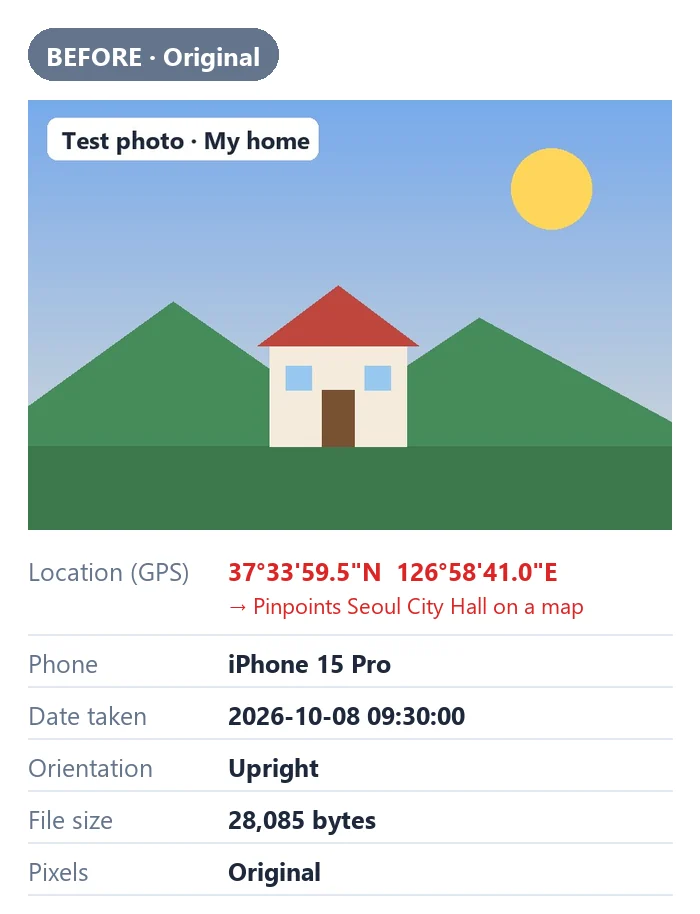
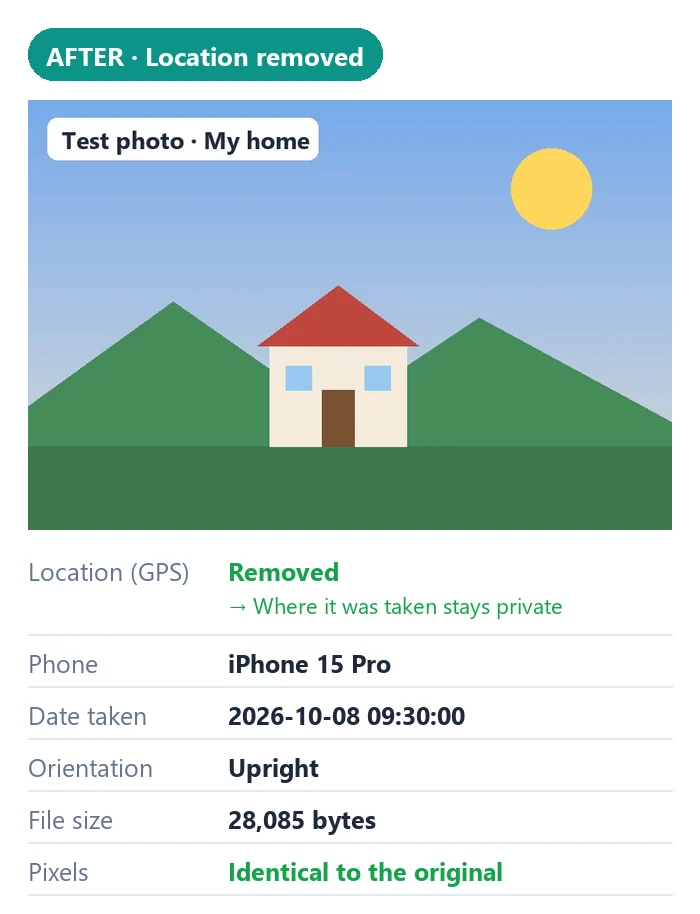
When to use it
- Posting item photos as original files on a marketplace or forum
- Sharing photos of your home, children or pets on a blog
- Sending photos by email or cloud link
- Submitting photos where you would rather not reveal the device you used
What gets removed?
| Information | Location only | All metadata |
|---|---|---|
| GPS latitude, longitude, altitude | Removed | Removed |
| Place names (city, country in XMP or IPTC) | Removed | Removed |
| Date and time taken | Kept | Removed |
| Phone or camera model, lens, exposure | Kept | Removed |
| Preview thumbnail, comments, edit history | Kept | Removed |
| Orientation (portrait or landscape) | Kept | Kept |
How to check a photo for location data
- Windows: right-click the file → Properties → Details, and look for a “GPS” section.
- Mac: open it in Preview, choose Tools → Show Inspector and look for a “GPS” tab.
- iPhone and Android: in the Photos or Gallery app, swipe up on a photo or tap the info (ⓘ) button to see a map.
Check a processed photo the same way and the GPS section is gone.
What about future photos?
Turning off location tags in your camera settings stops new photos from recording a location, but it also disables features such as browsing photos by place. Keeping it on and cleaning only the photos you share is a good middle ground. See How to check and remove location data from photos for more.
Image formats this tool accepts
This tool accepts JPG, PNG, WEBP and HEIC (iPhone photos). HEIC photos that Windows struggles to open can go straight in without converting them first.
Phone photos are turned upright using the orientation recorded when they were taken. Results are saved as new images, so location (GPS) and device details are not included. Depending on the tool, the output keeps the original format or you can choose it under “Options”.