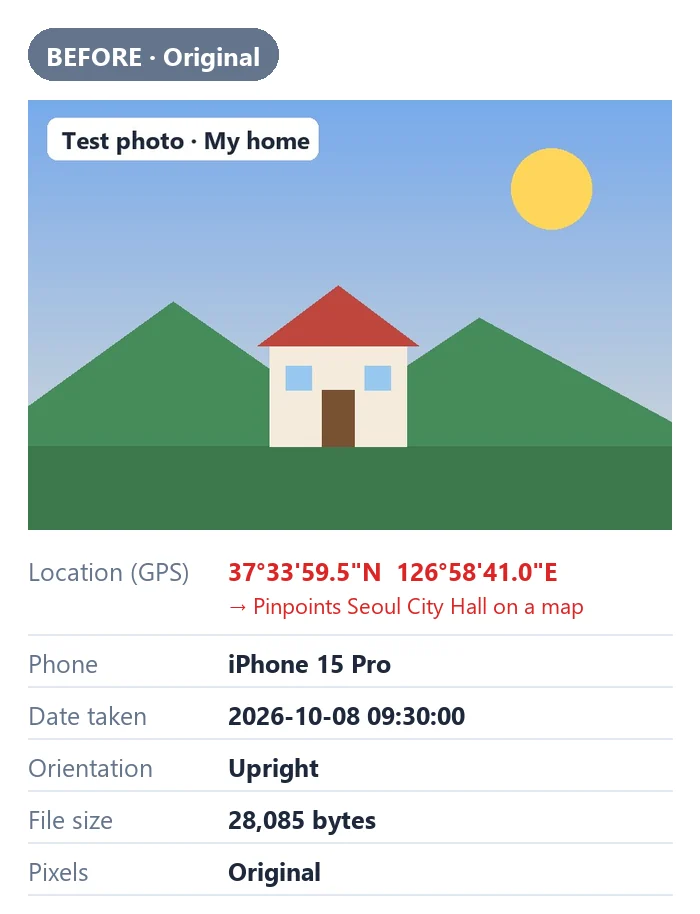
Photos from your phone carry information you can’t see: the date, the phone model and — if location tagging is on — the latitude and longitude where the photo was taken. The error is usually just a few metres, so a photo taken indoors at home is effectively your home address.
What’s stored inside a photo (EXIF)
This information is called EXIF and is stored as a small table inside the image file.
| Information | Example | Risk |
|---|---|---|
| GPS location | 51.5007, -0.1246 (Westminster) | High: reveals home, school or work |
| Date and time | 2026-10-08 09:30 | Medium: hints at your routine |
| Device | iPhone 15, lens and exposure | Low |
| Preview thumbnail | A small copy of the unedited original | Parts you cropped out may still be there |
When does the location survive?
Messaging apps and social networks usually strip this information when they re-compress a photo. But it varies by service, and the location can survive whenever the original file is passed on:
- Sending as a file or in “original quality” in a messaging app
- Email attachments and cloud-drive share links
- Uploading original files to marketplaces, forums or blogs
- Handing over photos on a USB stick or memory card
When in doubt, remove it before sending.
Check whether a photo has a location
- iPhone: in Photos, swipe up on a photo. If you see a map, the photo has a location.
- Android: in the Gallery or Google Photos app, swipe up or tap the info (ⓘ) button to see a map.
- Windows: right-click the file → Properties → Details, and look for a “GPS” section with latitude and longitude.
- Mac: open it in Preview and choose Tools → Show Inspector, then look for a “GPS” tab.
How to remove it before sharing
Option 1: Turn it off in your phone’s share sheet
- iPhone: select the photos, tap Share, tap Options at the top and switch off Location. It applies to that share only.
- Android: some gallery apps offer to remove location data in the share screen; it depends on the maker and version.
Option 2: Remove it in the browser
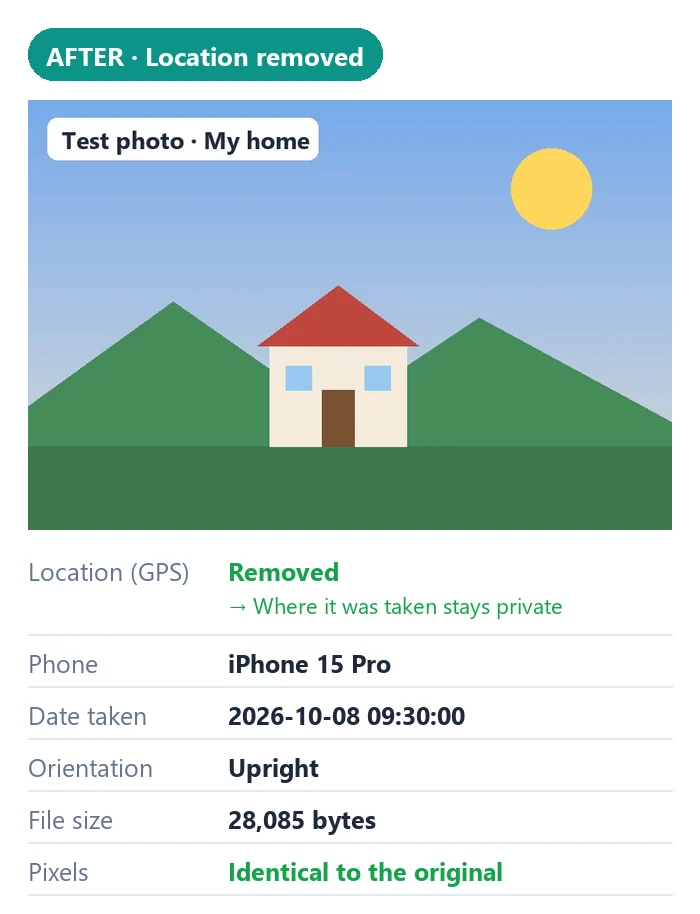
Drop your photos into Remove location from photos and download copies without GPS coordinates or place names.
- No quality loss. The photo isn’t re-compressed; only the metadata fields inside the file are cleared.
- Works with JPG, PNG, WEBP and HEIC, several photos at once.
- To remove the date and device as well, choose All metadata under Options. The orientation is kept so photos don’t end up sideways.
- Photos are processed inside your browser and never uploaded. Sending a photo to an unknown server in order to remove its location would be a risk in itself.
Option 3: Windows’ built-in tool
In Properties → Details, click Remove Properties and Personal Information to create a copy without the metadata. Fine for a few photos on a Windows PC.
Converters on this site that re-save photos, such as HEIC to JPG and Compress image, produce files without location data. If you were going to convert or shrink the photo anyway, there’s nothing extra to do.
Stop recording locations in new photos
- iPhone: Settings → Privacy & Security → Location Services → Camera → Never
- Android: open the Camera app → Settings → turn off Location tags (the name varies by maker)
Turning it off also disables features such as browsing photos by place, so keeping it on and cleaning only the photos you send out is a reasonable middle ground.
Summary
Phone photos may carry the place they were taken, and sending the original file passes it on. Check whether a photo shows a map, then remove the location before sharing — with your phone’s share options or with Remove location from photos. For future photos, turn off location tags in the camera settings.